
For users currently utilising a GLF Connect system integrated with Oracle MICROS POS, additional enhancements to the refund feature are now available.
With this update, users with the appropriate refund permissions can now process refund checks for the following additional transaction types directly at the POS:
Class Delivered Charge
This applies to any multi-session class where the delivered check for a session has already been pushed and closed on the POS. Users can now refund the delivered check back to the balance sheet account. This allows you to either:
- Re-push the delivered check to the POS, or
- Refund the entire revenue charge for the class.
Class Un-Delivered Revenue Charge
This applies to multi-session classes where delivered session checks have already been pushed and closed on the POS, but the remaining un-delivered revenue is required to be refunded to the member or guest.
Watch the walkthrough below for a step-by-step demonstration of both refund processes:
Refunding Class Delivered Checks
Via the Schedule view on Web or Mobile Web, users can select the Refund Delivered menu option for an individual when the revenue status is green, and the delivered status for the session is green:
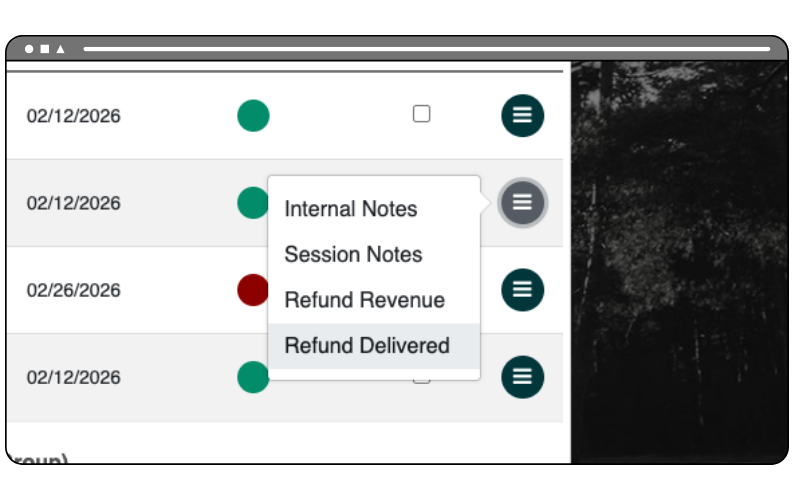
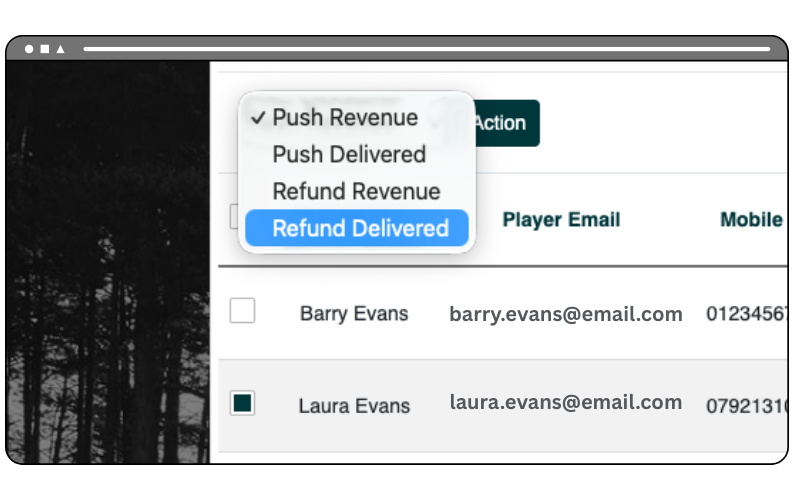
After completing the push, the delivered status updates to purple, indicating it is in the transaction queue. Once successfully sent to the POS, the status updates to the refund icon.
When the check reaches the POS, it will display on the check presentation screen tied to the relevant Golf Programming and Department SKU’s, with the instructions to Refund to the Balance Sheet:
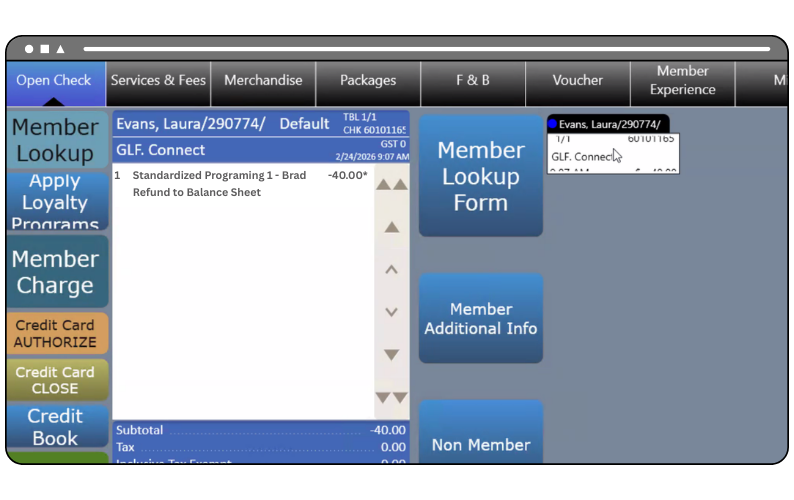
At the POS, users should select the Pay tab, choose Other Payments (blue tab on the right) and Select Pay from Balance Sheet Account to close the check back to the balance sheet account.
Once the check is closed on the POS, the delivered status will revert to red.
Refunding Class Un-Delivered Revenue
Via the Schedule view on Web or Mobile Web, users can select the Refund Revenue menu option for an individual when the revenue status is green, and one or more delivered session statuses within that class are green.
A pop-up will appear summarising the initial revenue charge, the total amount already pushed to the POS and removed from the balance sheet and the remaining un-delivered revenue available to be pushed and refunded to the member or guest:
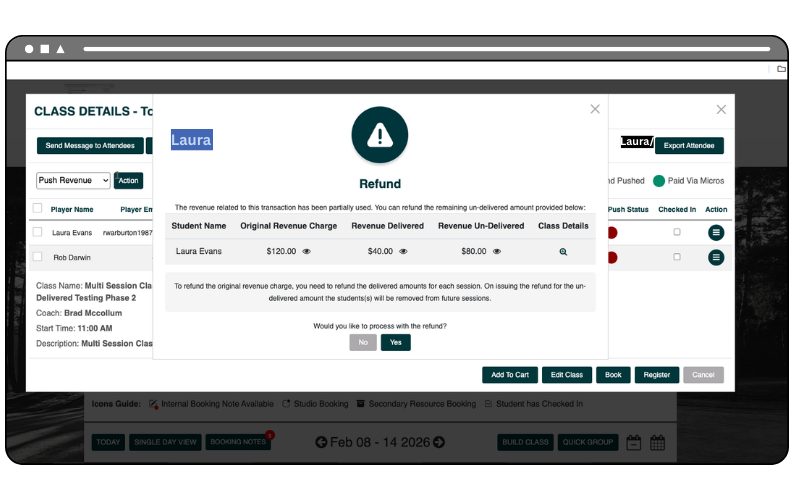
After confirming the push, the revenue status updates to purple (in transaction queue) and once successfully sent to the POS, it updates to the refund icon.
At the POS, the check will appear tied to the Golf Package service charge, with instructions to refund back to the member or guest using their chosen payment method (for example, Refund via Member Charge).
Through this process, the revenue amount is automatically removed from the balance sheet account.
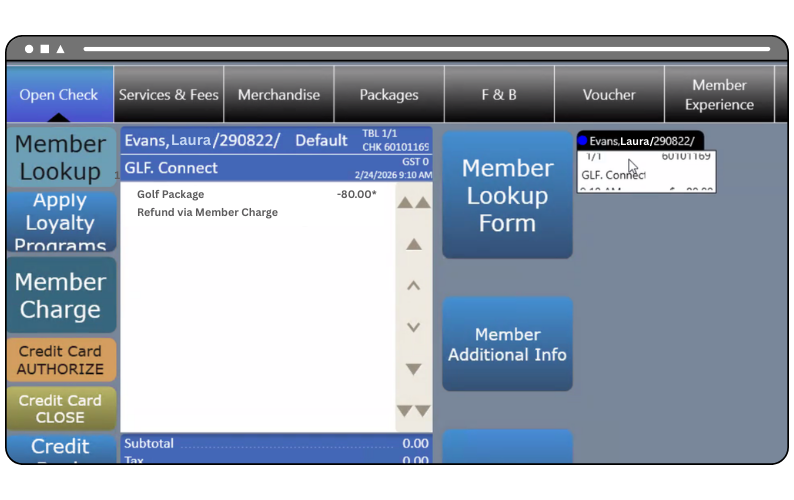
Once the check is closed on the POS, the revenue status updates to green.
The Amount Paid field reflects the updated revenue delivered and the student is automatically removed from any future class sessions they did not attend.
