
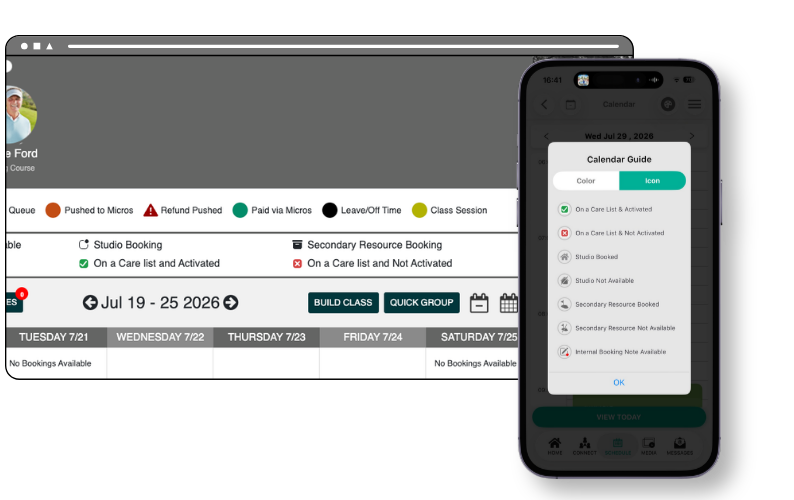
GLF.Connect now provides visibility of engagements with Care Group members on the schedule. This makes it easier for users to identify which students are assigned to a Care Group and whether their membership is currently activated. New icons appear on both private lesson and class session bookings, and Care Group details are now visible within the Lesson Details and Class Details screens on both web and mobile apps.
What's new
- Care Group icons on private lessons – New icons now appear on private lesson bookings across all durations and payment types to show whether the student is currently assigned to a Care Group (has a primary coach). The On a Care List & Activated icon will display if the student's membership is currently activated, and the On a Care List & Not Activated icon will display if it is not. No icon is shown if the student is not on a Care List.
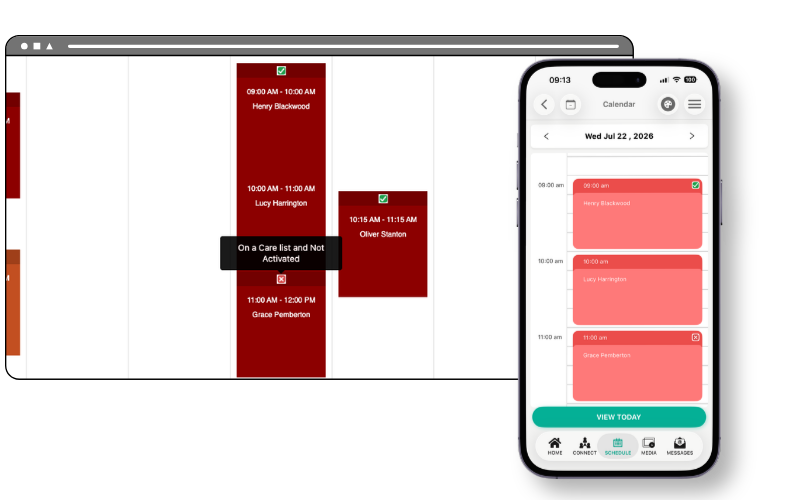
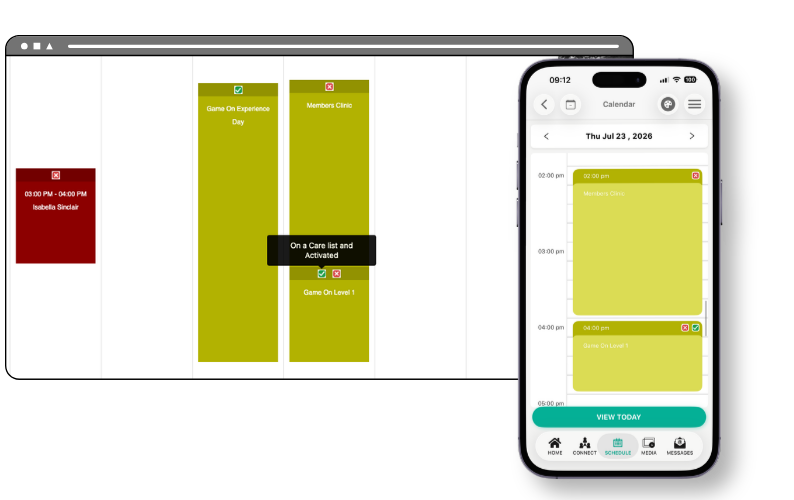
- Care Group icons on class sessions – The new Icons now also appear on class session bookings to indicate whether any attendee in the class is assigned to a Care Group and activated or not. If the class includes both activated and not-activated Care Group members, both icons will show. If no attendees are on a Care List, no icon is displayed.
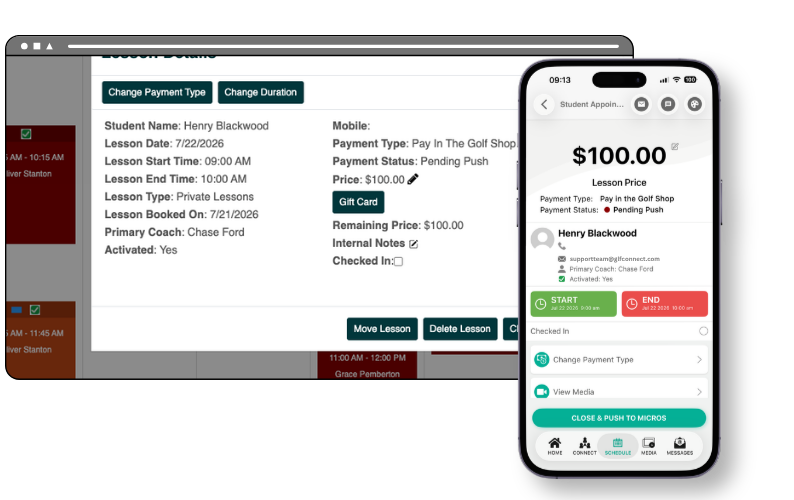
- Primary Coach and Activated status in Lesson Details– When opening a private lesson booking, two new information rows are now shown:
- Primary Coach - Displaying the name of the assigned primary coach, or N/A if none is assigned.
- Activated - Displaying Yes, No, or N/A.
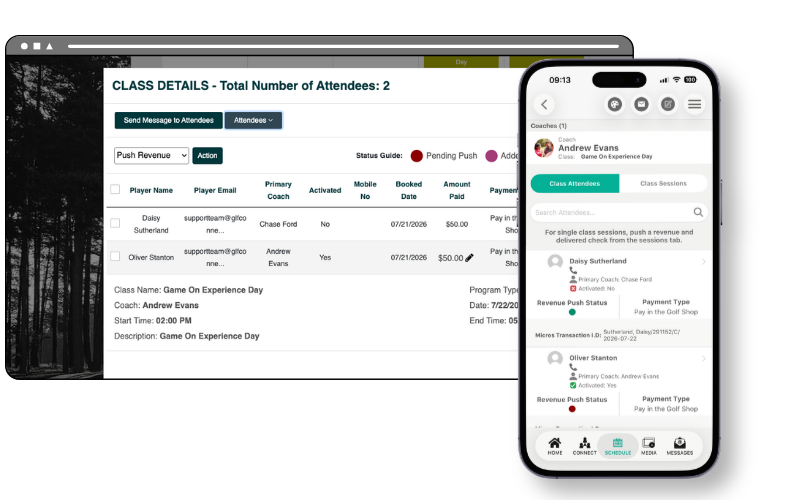
- Primary Coach and Activated status in Class Details – When opening a class session, two new columns will display in the attendees list within the Class Details pop-up.
- Primary Coach - Displaying the name of the assigned primary coach, or N/A if none is assigned.
- Activated - Displaying Yes, No, or N/A.
- Updated Icon Guide – Two new icons have been added to the Icon Guide on both web and mobile for On a Care List & Activated and On a Care List & Not Activated.
- Icons update dynamically – The icon shown reflects the student's current activation status, not their status at the time of booking. If a booking shows On a Care List & Not Activated, and the student's membership is later activated (for example, after an engagement note is logged), the icon will automatically update to On a Care List & Activated across all bookings for that membership — both past and future.
How to use
Identifying Care Group members on the schedule (web):
- Navigate to the Schedule on the web platform.
- Scan the lesson and class bookings displayed on the schedule view. Icons will appear on any booking where an attendee is assigned to a Care Group.
- Refer to the Icon Guide at the top of the schedule to identify what each icon represents — On a Care List & Activated and On a Care List & Not Activated are now included.
Viewing Care Group details for a private lesson (web):
- Click on any private lesson booking on the schedule to open the Lesson Details pop-up.
- Locate the Primary Coach row to see which coach the student is assigned to as their primary coach.
- Locate the Activated row to see whether the student's membership is currently activated (Yes, No, or N/A).
Viewing Care Group details for a class session (web):
- Click on any class session booking on the schedule to open the Class Details pop-up.
- The attendees list now includes a Primary Coach column and an Activated column for each student.
Identifying Care Group members on the schedule (mobile app):
- Open the GLF.Connect app and navigate to the Calendar view.
- Care Group icons will appear on lesson and class bookings where an attendee is assigned to a Care Group.
- Tap the guide icon on the calendar screen to open the Calendar Guide and view the full icon legend, including the two new Care Group icons.
Viewing Care Group details on a student appointment (mobile app):
- Tap on a lesson booking to open the Student Appointment screen.
- The Primary Coach and Activated fields are displayed beneath the student's email address.
Viewing Care Group details in a class (mobile app):
- Tap on a class booking to open the Class Details screen.
- Navigate to the Class Attendees tab to view the list of attendees. The Primary Coach and Activated details are shown beneath each student's email address.