
Coach users can now book multiple students onto a class in a single checkout process on the GLF. Connect mobile apps. Rather than repeating the booking journey for each student, you can select several students at once, review their details and payment options together, and confirm every booking in one go. This brings the mobile apps in line with the web-based system.
What's new
- Select multiple students – From the Select a Student screen, you can now select multiple students from the list view by tapping their names. A tick appears next to each selected student, and their name is added as a tag at the top of the screen, below the search bar. To remove a student, tap the X on their tag.
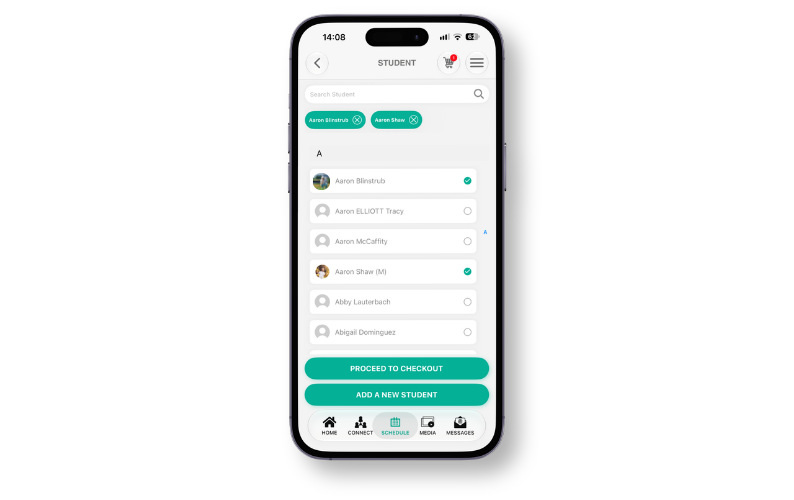
- Proceed to Checkout – Once a student has been selected, the Proceed to Checkout button becomes available at the bottom of the screen. The Add a New Student button remains available below it if the student you need is not yet in your list.
- Combined total – The checkout shows the class details at the top of the screen, including the coach name, class name, first session date and session time. The total reflects every selected student, so a class priced at $300.00 with two students selected shows a total of $600.00 (shown in your club’s currency).
- Students in the checkout – Below the total, a heading shows how many students are in the checkout (for example, 2). Each student is listed with their own checkout section, and the first student’s information is revealed automatically. Tap the up arrow next to a student’s name to hide their details, or the down arrow to reveal them and edit their checkout preferences. Members also show their Club Member Number beneath their name.
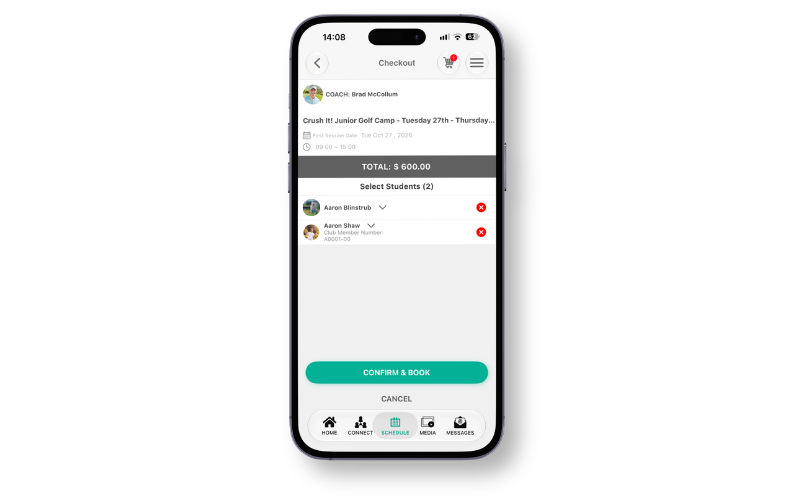
- Individual checkout details – When a student’s section is expanded, you can review and update their contact details, add a discount, choose their payment option, and add Internal Notes and Student Notes, as you would for a single booking.
- Edit prices or remove students – The price each student is paying is shown below their name. Use the pencil icon to edit the price, which works as it does today, including member and non-member pricing and departmental splits for Micros-enabled clubs. To remove a student from checkout, tap the red X to the right of their name and the totals update automatically. If all students are removed, you are returned to the home screen of the booking system.
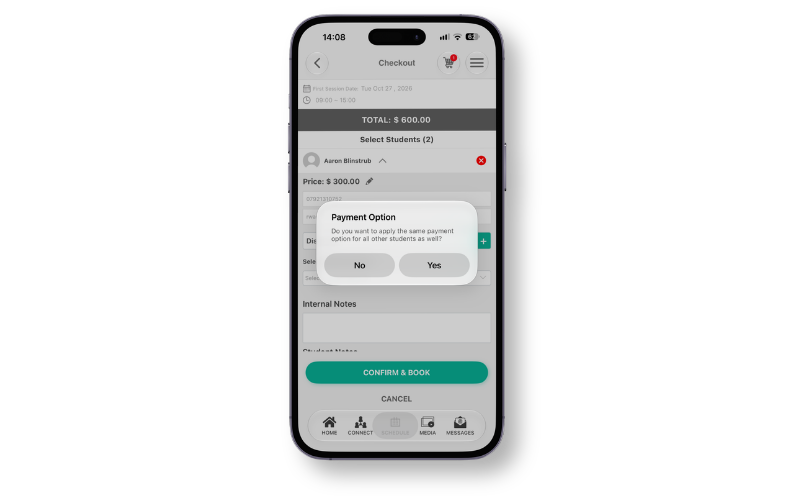
- Apply one payment option to all students – After choosing a payment option for a student, a Payment Option pop-up asks whether you want to apply the same payment option to all other students. Select Yes to apply it to everyone, or No to apply it to that student only.
- Payment types – Payment types linked to Stripe (Pay by Debit or Credit Card, Pay by Link and Terminal) are not available when booking multiple students in this way.
- Terms of Service & Privacy Policy – The Accept our Terms of Service & Privacy Policy scroller is now enabled for every student, whether you are booking one student or several.
- Final check before booking – When you select Confirm and Book, a final pop-up asks: “Have you checked the payment type and amount for each student?” Select Yes to confirm the bookings, or No to return and make further edits.
Booking Confirmation Screen
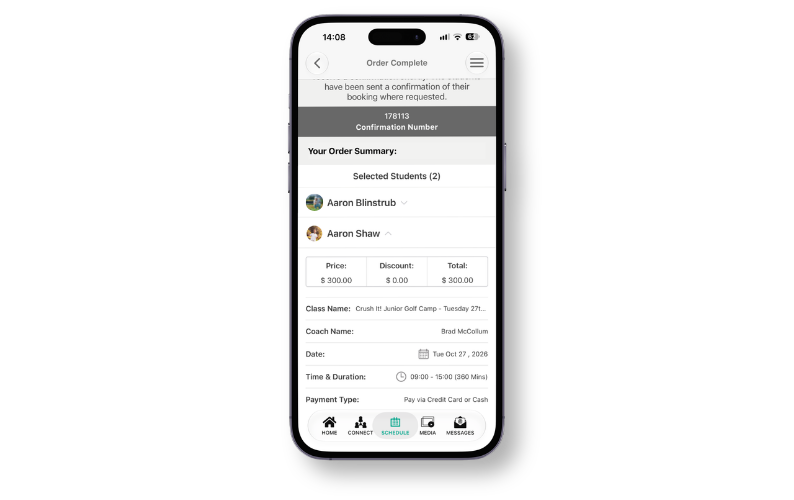
Once the bookings are confirmed, the confirmation screen displays the following message, whether you have booked one student or several: “Your booking has been processed. The coaches delivering the lesson or class will receive a confirmation shortly. The students have been sent a confirmation of their booking where requested.”
- Order summary – The Your Order Summary section appears below the confirmation number bar, with a Selected Students count (for example, Selected Students (2)). Each student can be expanded to view their booking information.
- Student booking details – Below each student’s name, a table shows the price, discount applied and total price they are paying, followed by the Class Name, Coach Name, Date, Time & Duration (for example, 09:00 - 15:00 (360 Mins)) and Payment Type.
- Hide or reveal details – Use the up and down arrows next to a student’s name to hide or reveal their details.
- Totals – At the bottom of the screen you will see the Total Price for all students, the Total Discount applied for all students, and the Grand Total (Total Price minus Total Discount).
How to use
Booking multiple students onto a class:
- Open the class and tap Book to reach the Select a Student screen.
- Tap each student you want to book. A tick appears next to their name and they are added as a tag below the search bar. Tap the X on a tag to remove them.
- Tap Proceed to Checkout.
- Review each student’s price and select a payment option. When prompted, choose Yes to apply the same payment option to all other students, or No to apply it to that student only.
- Tap the pencil icon next to a price if you need to edit it, or the red X to remove a student.
- Tap Confirm and Book, then select Yes in the pop-up once you have checked the payment type and amount for each student.
- Review the confirmation screen and order summary.