
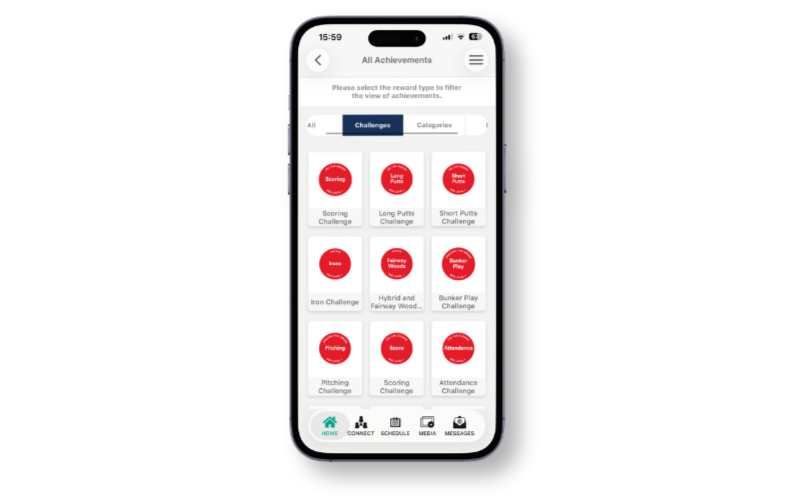
The MyGame+ Achievements screen in the GLF. Connect app has been updated with a new tab bar, making it easier to students and coaches to find and browse achievements. Users can now filter your achievements by type using the tabs at the top of the screen, rather than scrolling through everything at once.
What's new
- Filter tabs on the Achievements scree - A new set of filter tabs now appears at the top of the Achievements screen, just below the prompt "Please select the reward type to filter the view of achievements." The available tabs are:
- All — displays every achievement across all types
- Challenges — shows achievements earned through completing MyGame+ challenges
- Categories — filters achievements by category types
- Levels — shows achievements tied to progression levels
Tapping any tab instantly refreshes the achievement view to show only the relevant achievements for that selection.
- All tab selected by default - When you first open the Achievements screen, the All tab is selected, so your complete achievement collection is visible straight away — consistent with how the screen worked previously.
- Scrollable achievement grid - Within each tab, achievements are displayed in a scrollable grid. You can scroll left and right to browse through the different achievement categories, making it easy to explore everything available at a glance.
How to use the new tabs
- Open the GLF Connect app and navigate to your MyGame+ profile.
- Tap Achievements to open the Achievements screen.
- The All tab will be selected by default, showing your full achievements list.
- Tap Challenges, Categories, or Levels to filter the view.
- Scroll left and right within the grid to browse achievements within the selected tab.