
We have streamlined how coach and student users navigate into a MyGame+ programme on the GLF Connect app. Selecting a programme is now quicker and more intuitive, with fewer taps required to get to where you need to be.
What's changed
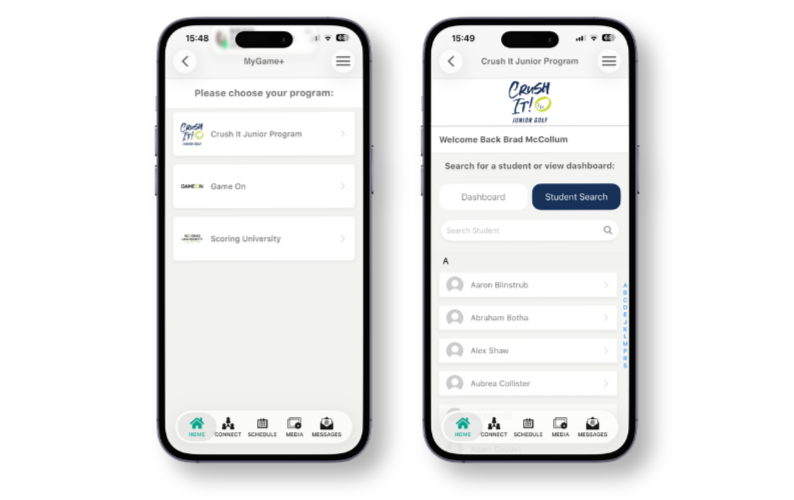
- Select a programme with a single tap - Previously, after selecting the MyGame+ tile and choosing your programme, users were required to tap a Next button to proceed. This step has been removed. You can now tap directly on the programme card to move straight through to the next step.
- Coaches land on the Student Search tab - When a coach selects a programme, they will now be taken directly to the Student Search tab rather than the Dashboard tab. This makes it faster to find and manage students without needing to navigate away from the default view.
- Students go straight to their programme dashboard - When a student selects a programme, they are taken directly into their MyGame+ programme dashboard, with no additional steps required.
How it works
- Open the GLF Connect app and tap the MyGame+ tile.
- Your active MyGame+ programmes will be displayed — tap the programme you wish to enter.
- Coaches will land on the Student Search tab, ready to find and manage students.
- Students will be taken straight into their programme dashboard.