
Coaches can now quickly switch between students from within any screen of a MyGame+ programme, without needing to navigate back to the student list. The new Switch Student button takes the coach directly to the same view for the newly selected student.
What's new
- Switch Student button in the header – A new Switch Student button has been added to the top right corner of every screen within a MyGame+ programme. This is visible to coach users only.
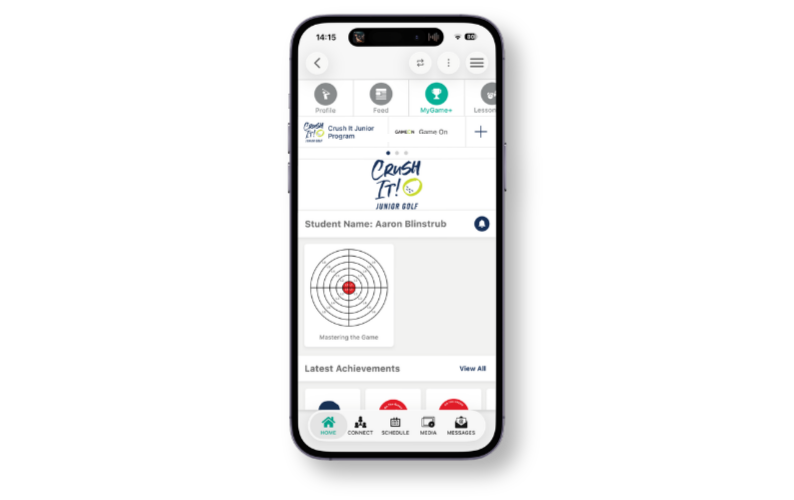
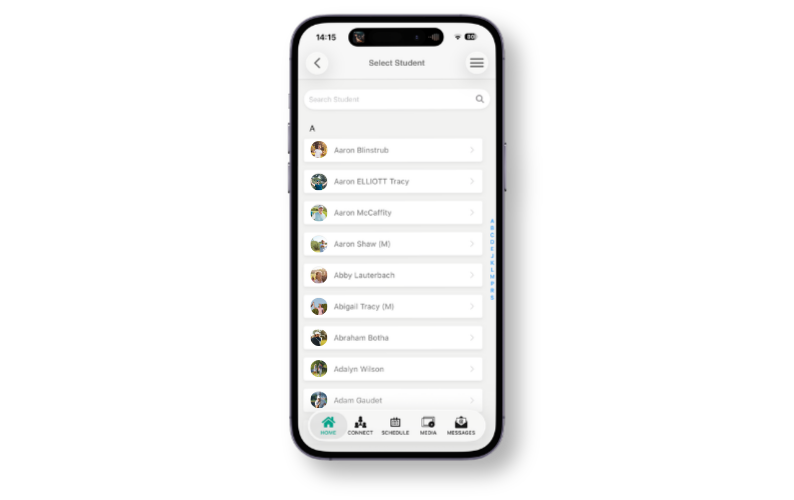
- Student list pop-up – Tapping Switch Student opens a pop-up showing all students enrolled on the programme. Select a student from the list to switch directly to their programme view.
- Same view retained – The screen displayed will match the view that was previously selected. When switching to the progress wheel or challenge screen, the next uncompleted challenge or level within the previously selected progress wheel, skill category, skill, and level will be automatically shown for the new student.
How to use
- From within any screen of a MyGame+ programme, tap the Switch Student button in the top right corner of the header.
- A pop-up will appear showing all students enrolled on the programme.
- Tap the student you wish to switch to. The programme view will update to show the same screen for the selected student, with the next uncompleted challenge or level automatically selected if previously viewing a progress wheel.