
The MyGame+ mobile app has been redesigned to make it easier and faster to navigate into the progress wheels, skill categories, skills, and challenges. A number of layout and interaction improvements have been made to both the programme dashboard and the progress wheel screens.
What's new
- On Course Tracking tile removed from the top section – The On Course Tracking tile no longer appears in the top section of the programme dashboard. It remains accessible from the Select an Option list view if it is enabled for the programme. This enhances the focus on the progress wheels.
- Main progress wheel shown at the top of the dashboard – The primary progress wheel for the programme now displays prominently in the top section of the dashboard. Scrolling indicators (dots) show when more than two progress wheels are available, and you can swipe left and right to move between them.
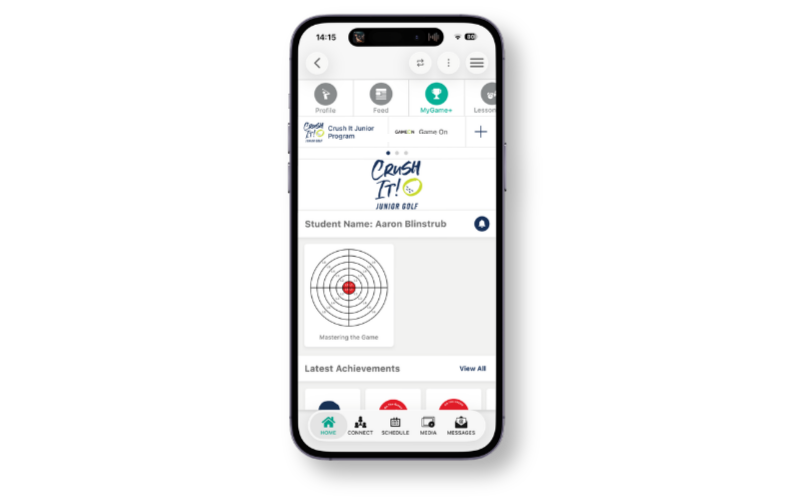
- Tapping the main progress wheel to reveal further information – When you tap the main progress wheel, you remain within the screen but the Skills Categories and Levels are revealed which then be selected.
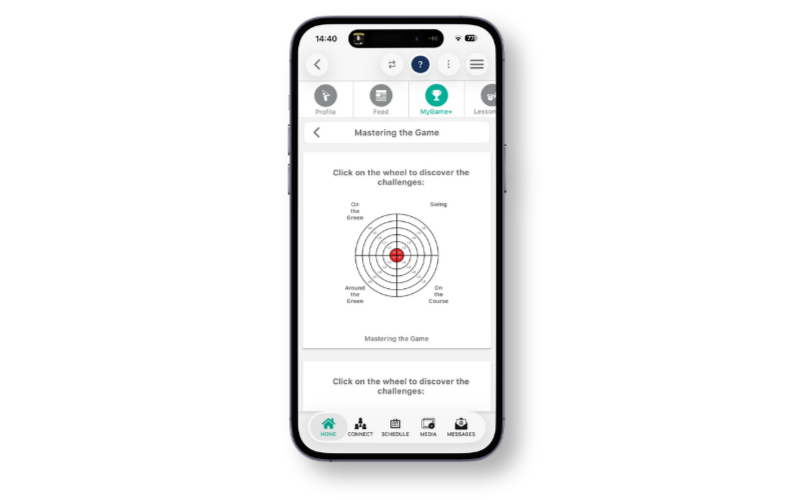
- Skill category wheels shown below the main wheel – Below the main progress wheel, the individual skill category wheels are displayed.
- Tapping a skill category wheel – When you tap the skill category wheel or select a skill category from below the main progress wheel, you remain within the screen but the skills and levels are then revealed. You can then select the appropriate skill and level to reveal the challenges:
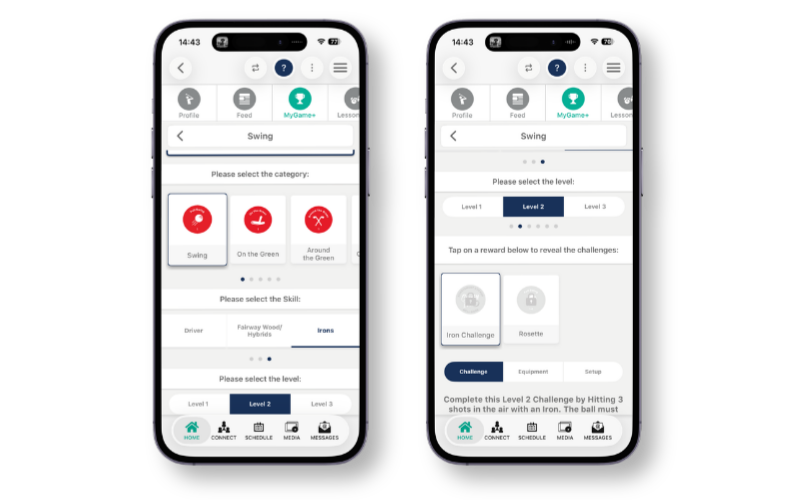
- Automatic level and challenge selection – After selecting a skill category and skill, the next uncompleted level is automatically selected by default. If a skill category or skill contains multiple challenges within a level, the next uncompleted challenge or level is automatically highlighted.
- Applies to both coach and student users – All navigation improvements apply to both coach and student users on the mobile app.
How to use
Navigating to a progress wheel:
- Open the GLF.Connect app and navigate to the relevant MyGame+ programme.
- The main progress wheel for the programme is displayed at the top of the dashboard. Swipe left or right to move between progress wheels if more than one is available.
- Tap the progress wheel to open the progress wheel screen. The screen header will update to reflect the selected wheel.
Navigating to a skill category and challenge:
- On the progress wheel screen, the main wheel appears at the top and the skill category wheels are shown below.
- Tap the main wheel to view levels and skill category rewards, or tap a skill category wheel (for example, Swing) to go directly to that category.
- If skills are available, select the relevant skill from the prompt. The level tabs and challenges will appear below automatically.
- The next uncompleted level and challenge for the student will be pre-selected. Scroll left or right across the category, skill, and level rows to explore other options.