
Coaches can now access and assign MyGame+ programmes directly from the Class Details screen when viewing a student's appointment via the Schedule view. This removes the need to navigate away to the Student Connect screen, making it faster to manage MyGame+ programmes during or around a class session.
What's new
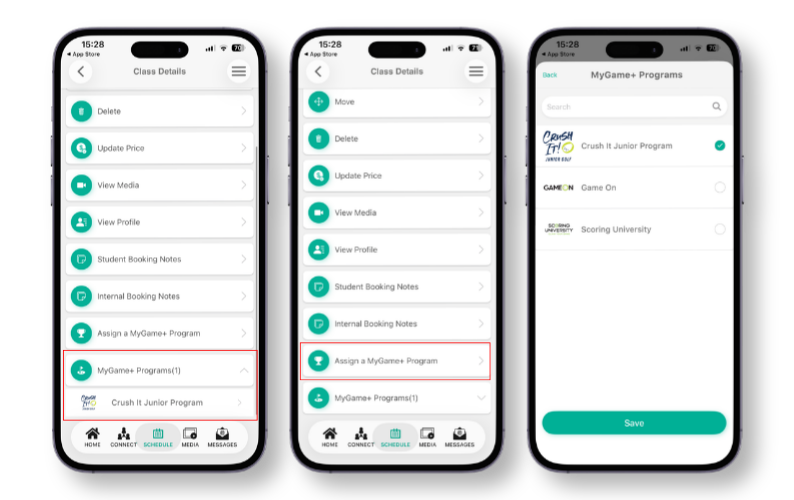
- Two new options in the Class Details menu - When a coach selects a student from the Attendees tab within a class appointment, two new options will appear in the Class Details menu: MyGame+ Programs and Assign a MyGame+ Program.
- MyGame+ Programs - This option appears when the selected student is already assigned to at least one MyGame+ programme. Tapping it expands a list of the student's assigned programmes directly within the Class Details screen. Tapping a programme from the list navigates the coach straight into that student's MyGame+ programme dashboard, without needing to go via the Student Connect screen.
- Assign a MyGame+ Program - This option is visible for all students, regardless of whether they have been assigned to a programme previously. Tapping it opens the MyGame+ Programs screen, where coaches can browse the full list of available programmes and select one or more to assign to the student.
How to use
- Open the GLF. Connect app and navigate to the Schedule view.
- Tap the relevant class appointment
- Select a student from the Class Attendees tab to open the Class Details screen with a range of options
- Scroll down and tap MyGame+ Programs to expand the list of assigned programmes.
- Tap the programme you wish to open to navigate directly into the student's programme dashboard.
- Alternatively, tap Assign a MyGame+ Program and browse or search the list of available programmes.