
MyGame+ is now accessible directly from Student Connect, allowing coaches to view and manage a student's myGame+ programme without leaving the student's connect profile area. From within MyGame+, users are also now able to navigate across the Student Connect features. Additionally, the assigned myGame+ programmes and assignment options are all available within the Student Connect interface.
What's new
- MyGame+ accessible from Student Connect – When viewing a student in Student Connect, a MyGame+ tile option is now available. Tapping this opens the student's MyGame+ dashboard directly within Student Connect, removing the need to navigate to a separate area of the app.
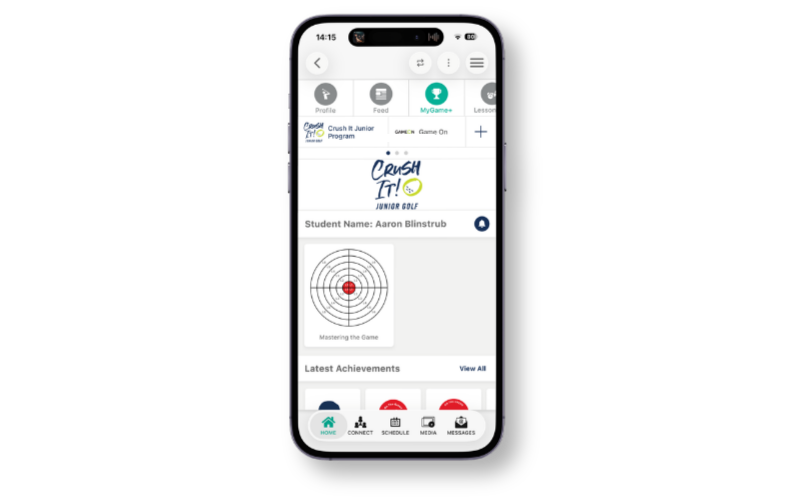
- Navigate freely between Student Connect features – While viewing MyGame+, coaches and students can navigate to any other Student Connect feature — such as Profile, Feed or Lesson Info — and return to MyGame+ without losing their place. The previously selected programme and view will be retained.
- Programme tiles shown at the top – When opening the MyGame+ feature within Student Connect, the programmes the student is assigned to are displayed as tiles at the top of the screen, showing the programme logo and name. Tap a tile to navigate into that programme.
- Scroll between multiple programmes – If the student is assigned to more than one programme, dots will appear below the programme tiles to indicate that you can scroll left and right.
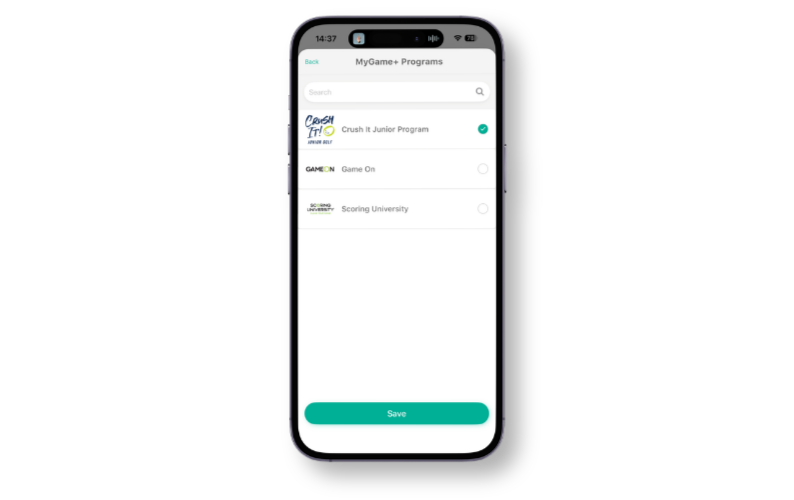
- Assign or unassign programmes via a plus icon – A plus icon is available for coach users to assign the student to a MyGame+ programme directly from this screen via a pop-up. The plus icon is not visible to student users.
- Student Connect options visible throughout – The Student Connect navigation options remain visible at the top of the screen when inside a MyGame+ programme, for both coach and student users.
How to use
Viewing a student's MyGame+ programme from Student Connect:
- Open the GLF.Connect app and navigate to Student Connect.
- Select the relevant student.
- Tap the MyGame+ tile option. The student's assigned programmes will appear as tiles at the top of the screen.
- Tap the relevant programme tile to open the student's MyGame+ dashboard.
- Use the Student Connect navigation at the top of the screen to move between features at any time.
Assigning a student to a programme from Student Connect (coach users only):
- From the MyGame+ section within Student Connect, tap the plus icon.
- Select the programme you wish to assign the student to from the pop-up.
- The programme tile will appear in the student's programme list.