
Three new insights tiles have been added to the MyGame+ programme dashboard on the mobile app, giving coaches a high-level overview of the total number of students assigned to the program and how these students are progressing through programme levels and challenges. The levels and challenge completion tiles display data in a bar chart format with filtering and drill-down options available.
What's new
- Three new insight tiles – Total Students Assigned, The Total Levels Completed and Total Challenges Completed tiles are now available on the MyGame+ programme dashboard for coach users.
- Total Students Assigned - A count of the total student assigned to the MyGame+ Program.
- Total Levels Completed - Provides an overview of the students who have completed levels across progress wheels, skill categories, and skills.
- Total Challenges Completed - Provides an overview of the students who have completed challenges across progress wheels, skill categories, levels, skills, and individual challenges.
- Total Students Assigned - A count of the total student assigned to the MyGame+ Program.
- Progress wheel tabs – Each tile displays tabs for every progress wheel in the programme, allowing you to switch between wheels. If there are more than two progress wheels, dots below the tabs indicate you can scroll left and right.
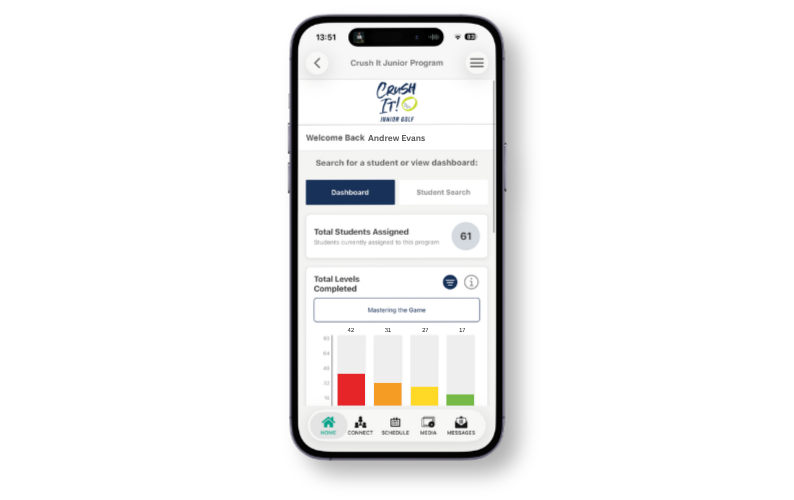
- Information icon – Tap the eye icon on either tile to view a description of what the data represents.
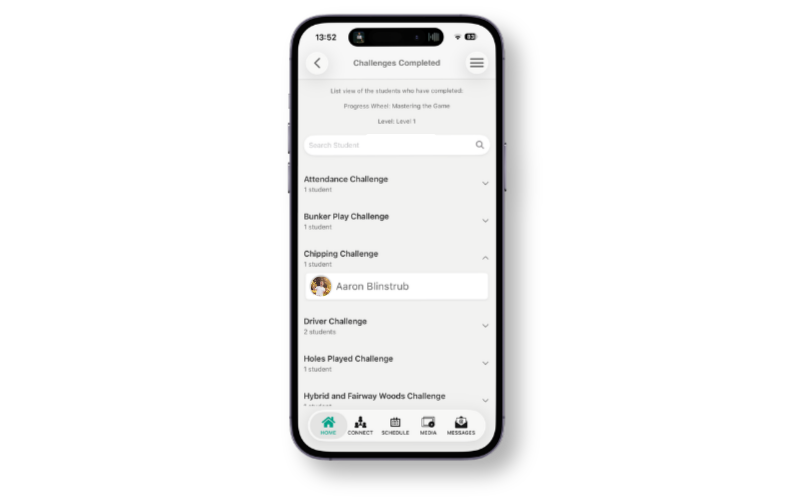
- Drill down to student list – Tap any bar on either chart to view a list of the students included. The list includes a search field and an alphabetical student list or list of challenges. Tap a student's name to navigate directly to their MyGame+ dashboard.
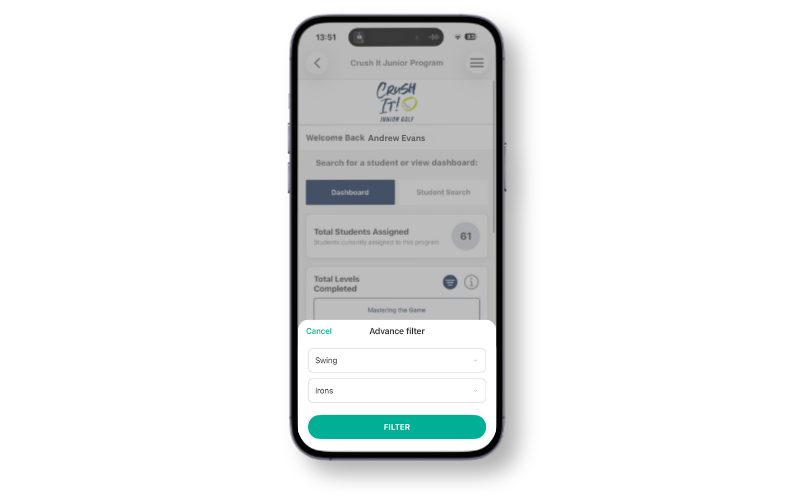
- Filter icon – Tap the filter icon in the top right corner to open the Advanced Filter. Select a Skill Category and/or a Skill to filter the chart, then tap Filter to refresh. Filters are optional and only one selection can be made per dropdown at a time.
How to use
- Open the GLF.Connect app and navigate to the relevant MyGame+ programme dashboard.
- In either insight, tap the tab to switch between progress wheels. Swipe left or right if more than two wheels are available.
- Tap the eye icon for a description of what the data represents.
- To filter the chart, tap the filter icon and select from the dropdowns. Tap Filter to refresh.
- Tap any bar to open the student list. Use the search field or scroll alphabetically, then tap a student's name to navigate to their dashboard.