
The student search experience within the MyGame+ programme on the mobile app has been significantly updated. Coaches can now view all students in the database, see assignment status at a glance, assign or unassign students with a single tap, add new students directly from the search, and get a quick overview of a student's progress without leaving the search screen.
What's new
- View all students – The student search listing now shows all students in the database, not just those enrolled on the programme. Students who are enrolled display the label Assigned in green beneath their name, and students who are not enrolled display Not Assigned in red.
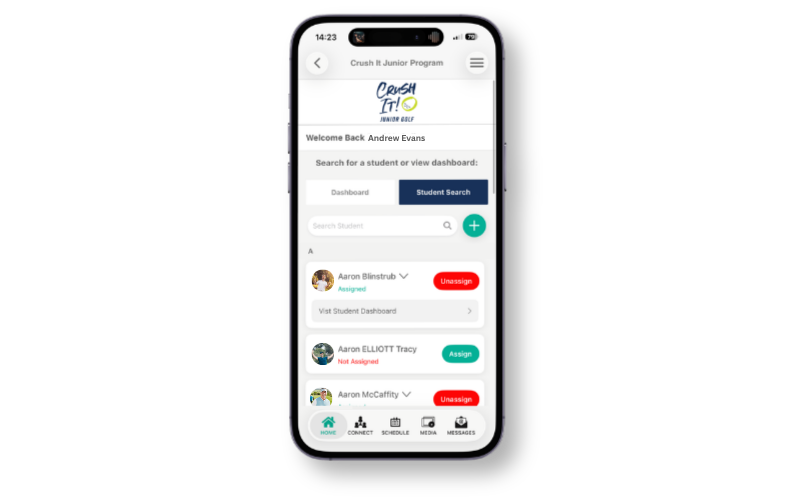
- One-tap assign and unassign – An easy one-tap option is available to assign or unassign students directly from the search listing. A confirmation pop-up will appear to confirm whether the action was successful.
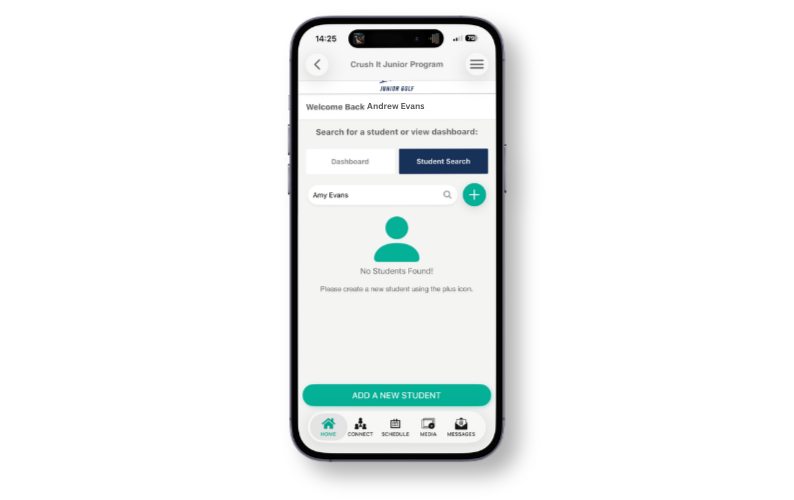
- Add a new student from the search – If a search returns no results, an Add a New Student option will appear. Tapping this opens the Add Student pop-up with the option to assign the student to the MyGame+ programme during account setup. A plus icon next to the search field also allows a new student to be created at any time.
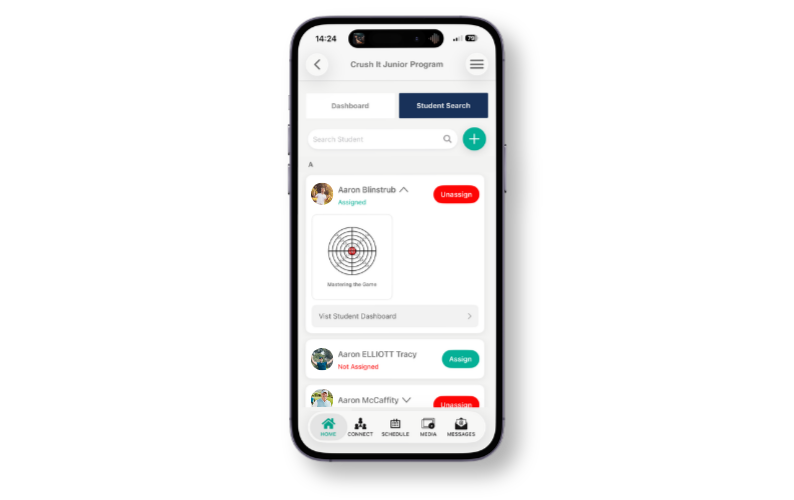
- Quick view of progress wheels – A down arrow appears next to each student's name. Tapping it expands a quick view of the student's main progress wheels, showing their current progress. Tap any wheel to navigate to the full progress wheel screen. Tap the up arrow to collapse the quick view.
How to use
View all students and assignment status:
- Navigate to the student search tab within the MyGame+ programme on the mobile app.
- All students in the database will be listed. Students assigned to the programme will show Assigned in green; those not assigned will show Not Assigned in red.
Assigning or unassigning a student:
- Locate the student in the search listing.
- Tap the assign option next to their name to assign or unassign them from the programme.
- A confirmation pop-up will confirm whether the student has been successfully assigned or unassigned. Tap OK to dismiss.
Adding a new student:
- Search for the student. If no results are found, tap Add a New Student, or tap the plus icon next to the search field at any time.
- The Add Student pop-up will open. Complete the required fields and assign the student to the programme during setup if required.
Viewing a student's progress wheel summary:
- Tap the down arrow next to a student's name to expand the quick view of their progress wheels.
- Tap any progress wheel in the quick view to navigate to the full progress wheel screen for that student.
- Tap the up arrow to collapse the quick view.